Welcome to Microsoft's Windows XP Home upgrade install guide
for versions released with service pack 2 or service pack 3. This guide is step by step and should be used when to XP Home
from a previous operating system.
-
Your Windows XP Home CD
-
Windows XP COA, or serial number.
-
Your computer Plugged into Mains Power
-
A Computer, with the usual accessories (Mouse,
monitor, keyboard etc)
-
CD-ROM/DVD Drive.
-
A Compatible/upgradable previous operating system.
To start this Windows install insert the CD from the desktop.
The CD will autorun, else go to My Computer, the CD-ROM drive and double click
on the "SETUP.EXE" file. The install will begin.
Remember to backup all important information before
performing this task.
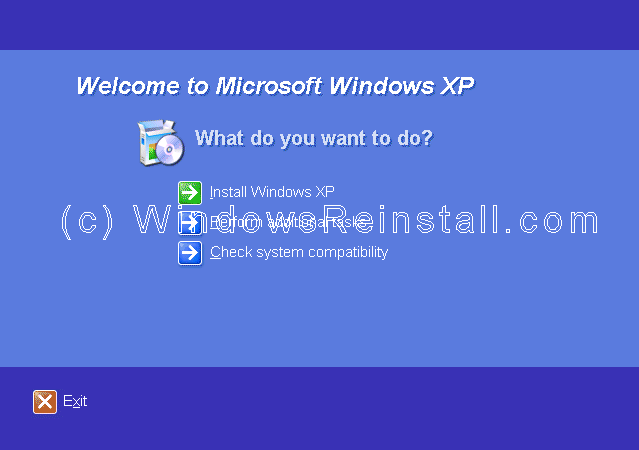
The "WELCOME" screen will appear first, select
"INSTALL WINDOWS XP" by clicking on it with the mouse.
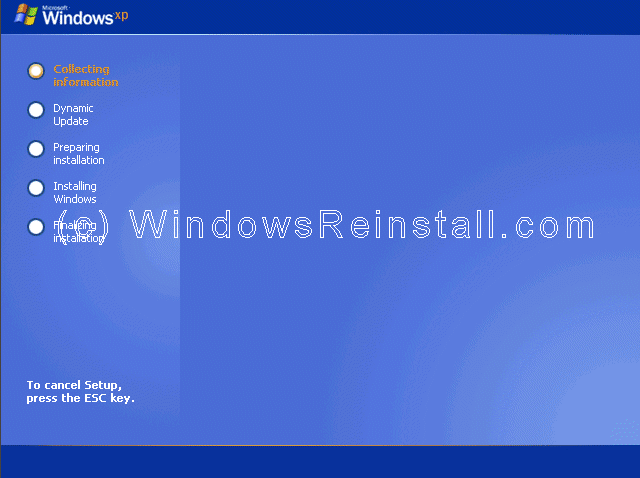
Windows will now gather some information from your computer.
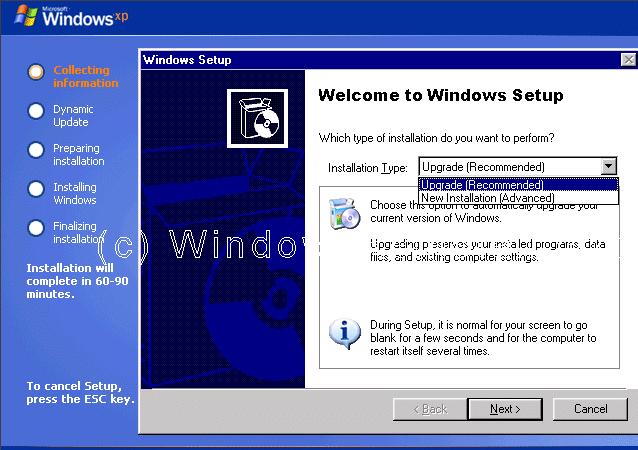
Now you will be asked which type of install you want. Select
"UPGRADE" and click on "NEXT" to continue.
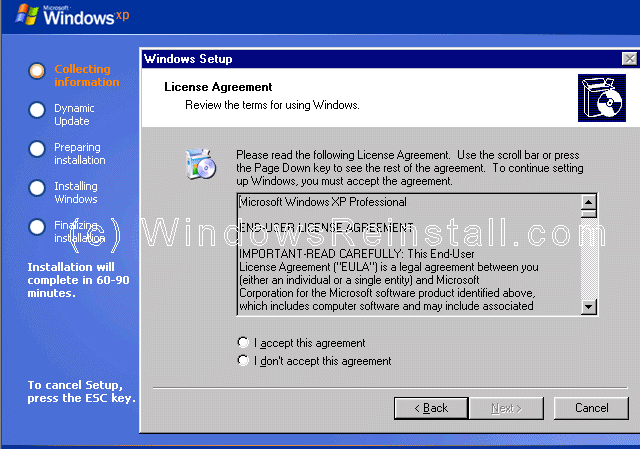
Now the License Agreement, read it and click on "I
ACCEPT" or "I DON'T ACCEPT", and click on "NEXT" to
continue.
Now it is time for your product key. The product key will be
on the packaging that XP was supplied with. It is 25 digits long. Some OEM
computers will have a sticker on the side or back with your product key. Input
the key and press "NEXT".

Now the windows upgrade report. To speed up install select
"Do not show me report" and click next to continue. Of course select
"Show me" if you wish to see a list of hardware that will cause
problems, but if you are determined press "Do not show".
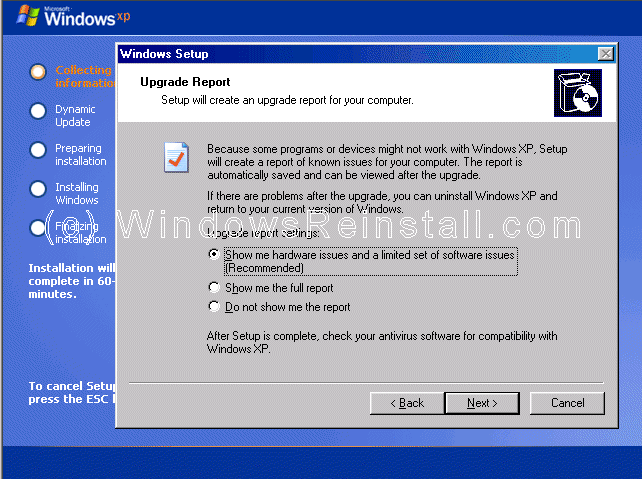
Now you have
the option to download Updated Setup files, if you want to and you are connected
to the net, then click "YES" and press "NEXT". This is not necessary,
so if you want to cut the install time, then click "NO" and press
"NEXT".
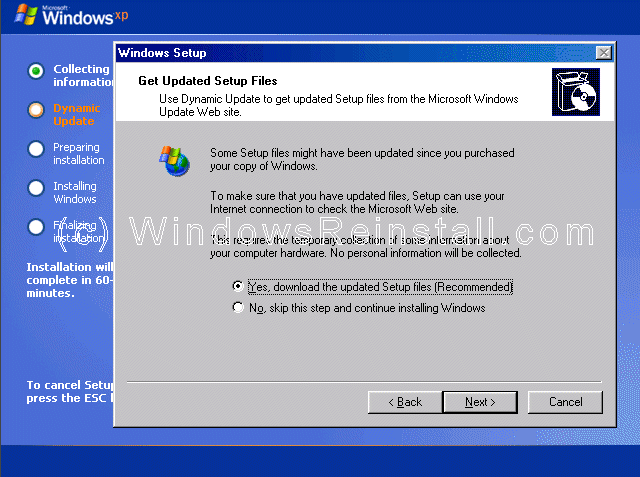
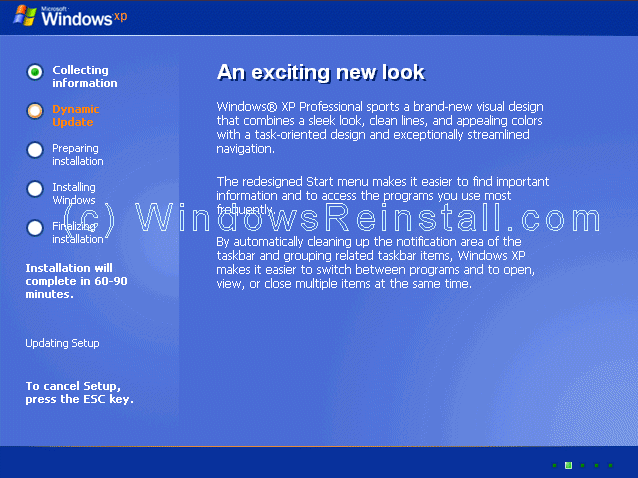
If you selected to update setup files, then setup will now
connect to the web and update, this may take some time.
Now setup prepares the install.
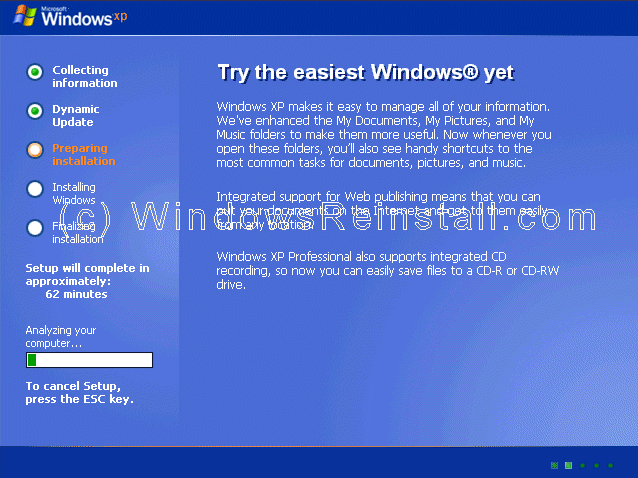
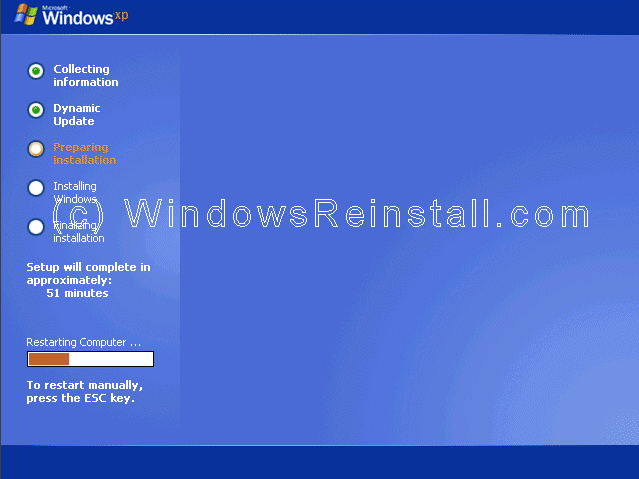
After some time, Setup will wish to reboot. You can stop this by
pressing "ESC" and do it yourself, otherwise let this continue.
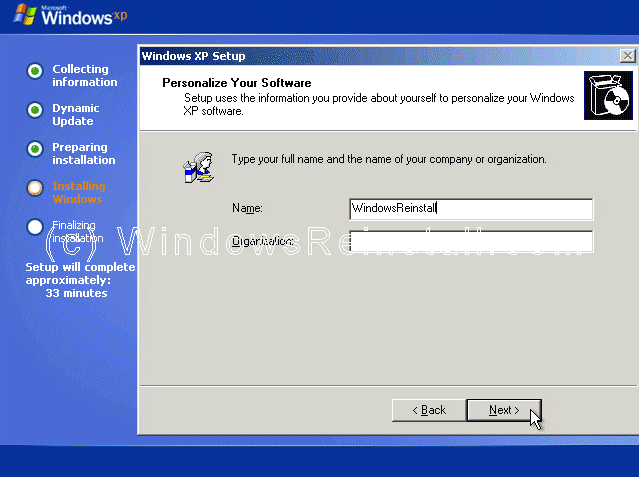
Now it is time to personalize Windows. File in your name and
if you wish you can also file in the Organization section. Click
"NEXT" when ready.
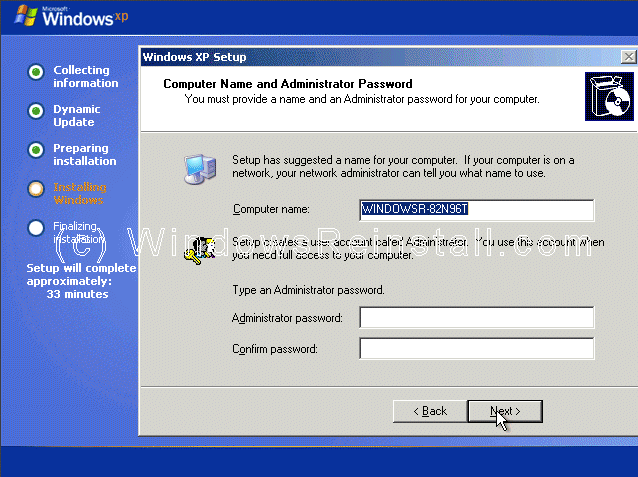
Now select your computer name and your admin password. Confirm
the Admin password and press "NEXT".
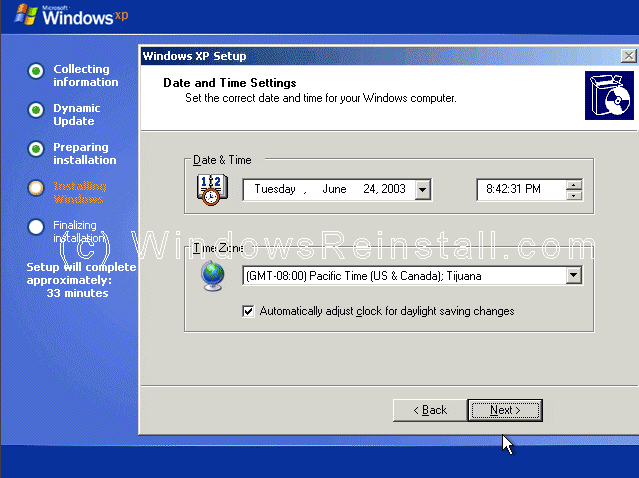
Date and Time settings are next, change as need be, then press
"NEXT".
Windows will then continue installing.
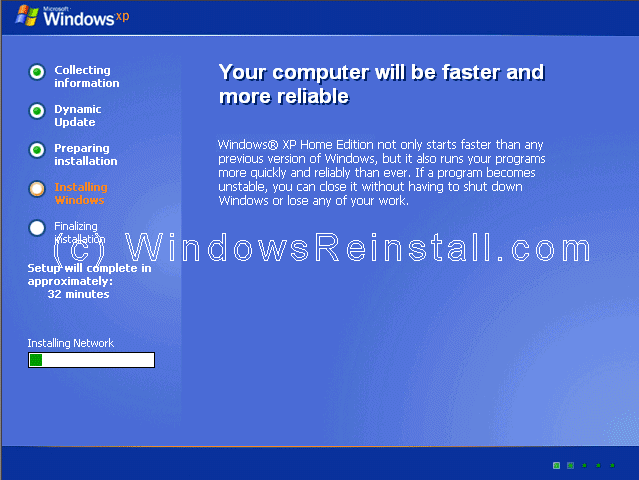
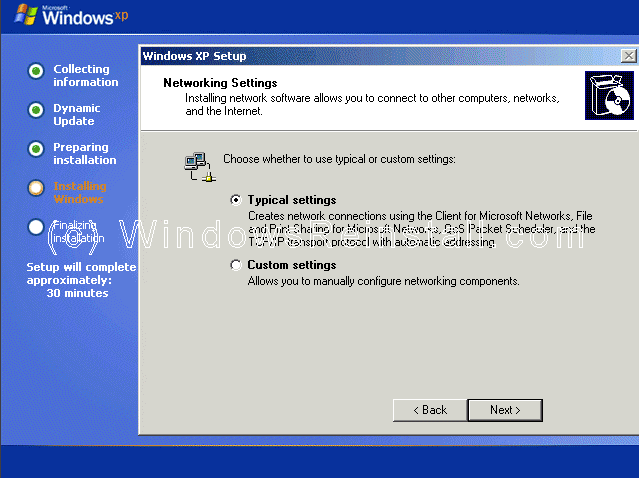
If a network card has been detected then you will get the
following menu. Select "TYPICAL SETTINGS" and press next. This
configured later in Windows.
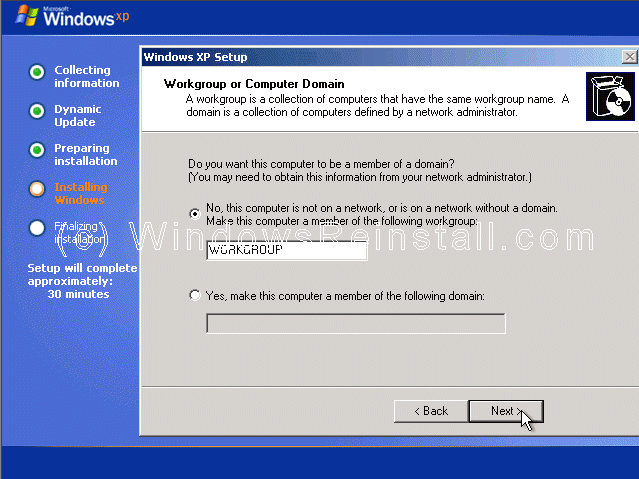
More network configuration, change workgroup name if need be
and click "NEXT".
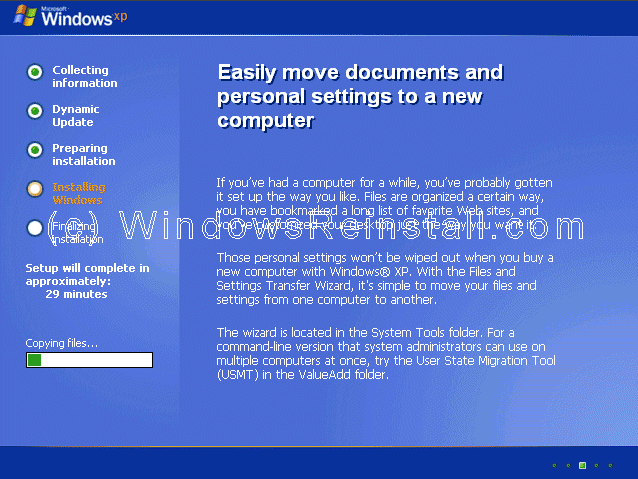
Windows will continue installing.
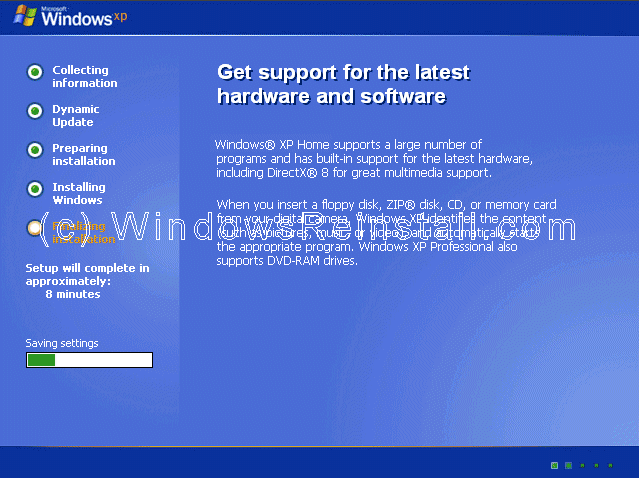
Windows install will now finalize.
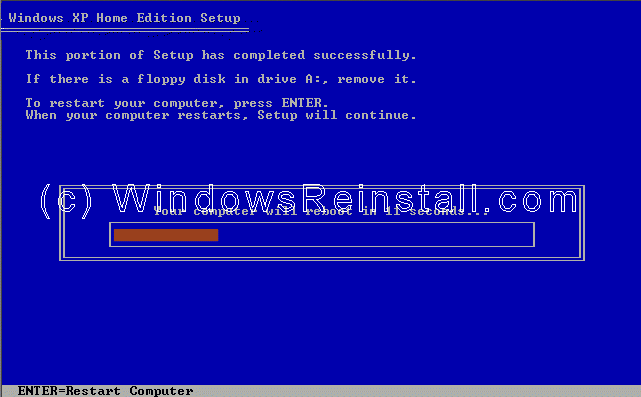
It is now time to restart Windows XP again, press
"ENTER" to speed up process, otherwise Windows will do it itself in
15 seconds.
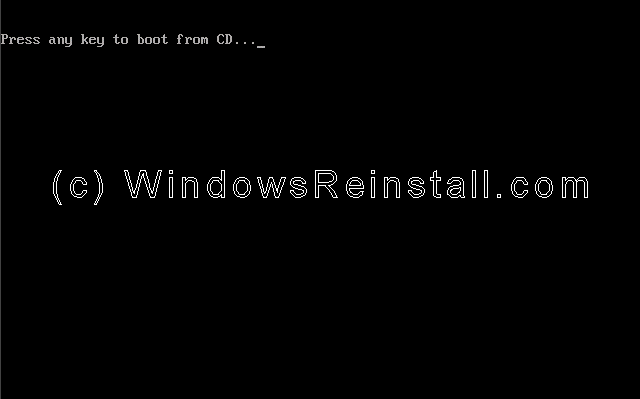
Boot will recognize that the XP CD is in the drive, DO NOT
press any keys, let setup bypass the CD boot.
Windows will continue loading.

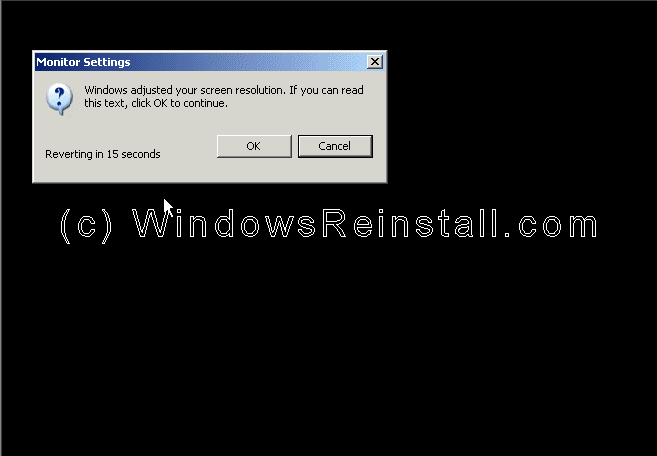
Windows will now adjust your resolution, click "OK" to
continue.
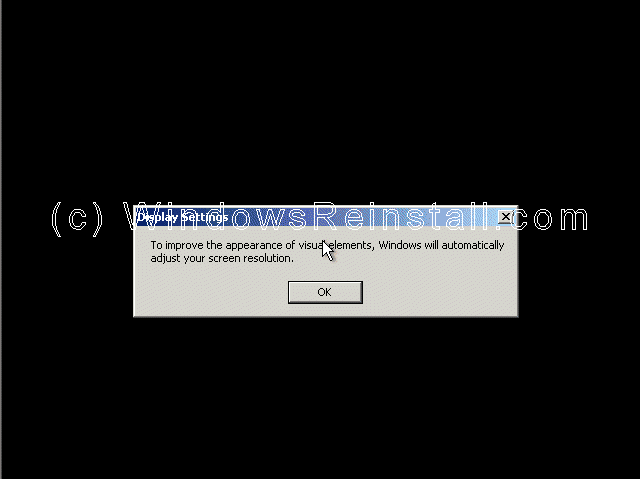
If you are happy with the changes, click "OK" otherwise
press "Cancel" to return to the old settings
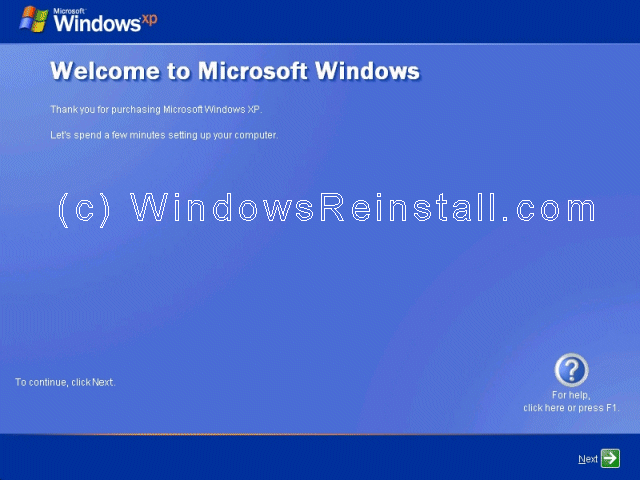
"Welcome to Microsoft Windows" screen now appears, press
"Next" to continue.
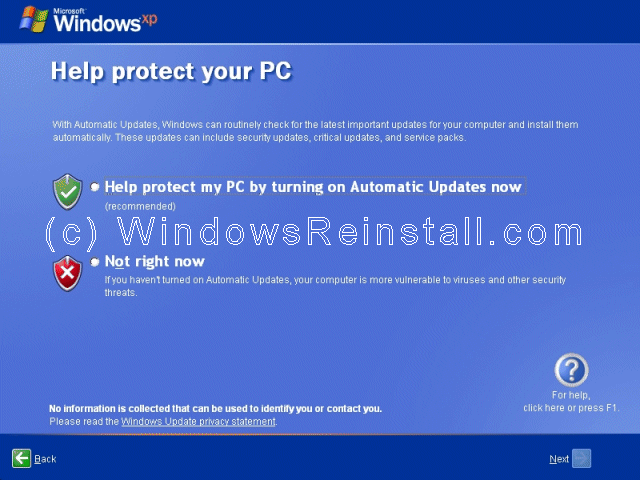
"Help protect my PC" screen now appears, click top option to
enable Microsoft's Firewall, Automatic updates and virus checker warning. It
is recommended to do this even if you wish to put your own firewall on
later. Only select "Not Right Now" if you not intend to use the internet.
Once you select your option, press "Next".
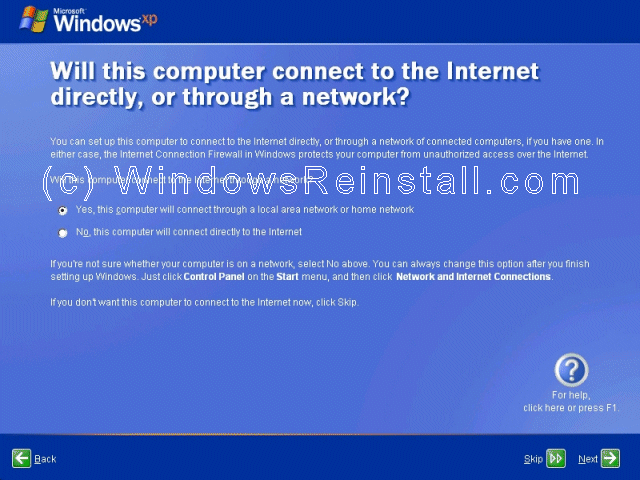
Internet connection option is next. If your computer
connects to a home network or directly using the network card, or is on a
network then select "Yes", otherwise select "No".
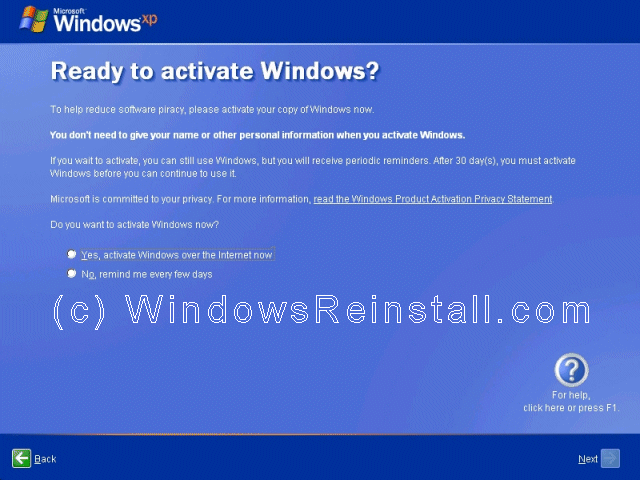
Activate Windows option appears next, we recommend that you
select "No, remind me every few days", that will allow you to make sure
everything is correct and running OK before you use up one of your activate
attempts. It also allows you to setup your security options and internet
connection correctly. Click "Next to continue"
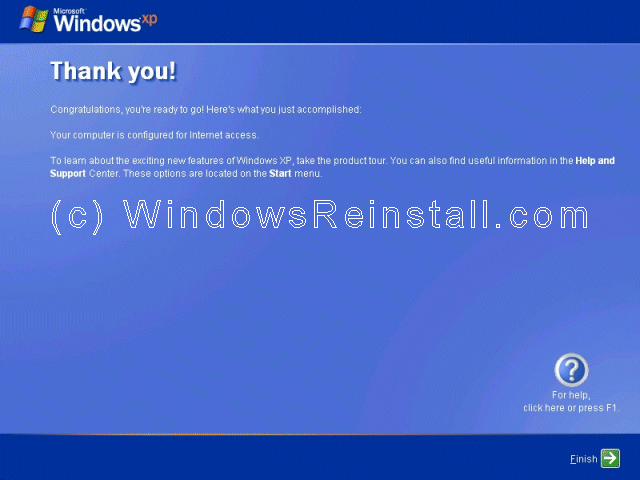
Windows now thanks you, click "Finish" to continue.
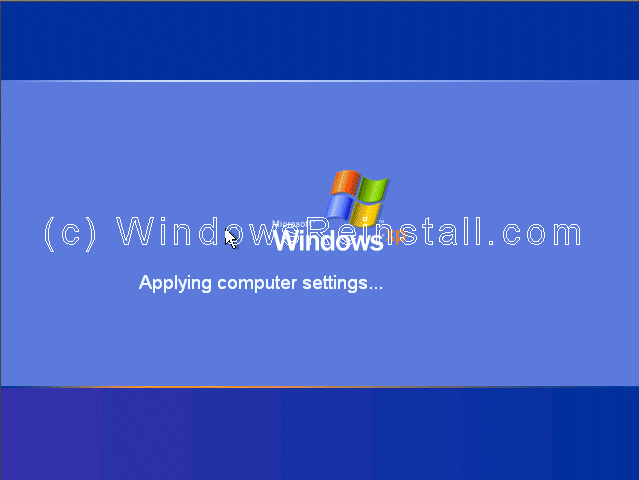
Windows will now apply your settings...
Now Windows "WELCOME" screen.

and finally the Windows XP Desktop. Windows is now
installed.

If you are lucky you will have no drivers to install, but
chances are the next step will be to install them. Check out device manager
for unknown devices, likely items are Network Cards, Sound Cards, Printers,
Scanners, Graphics Cards, Digital Cameras, etc.
As you done an upgrade you may want to download the latest
drivers for all your hardware, and check your programs also as some may not
work or require updates.
Click
here for main page
|

